

Rclone是一个网盘本地挂载软件,能将全世界多个热门的网盘挂载为系统本地磁盘,实现方便快捷的云盘文件管理效果。搭配无限空间的Google Drive网盘,相当于在电脑上安装了一个无比巨大的磁盘。
一般挂载Google Drive的时候,默认是使用的官方提供的api,所以高峰期上传文件的时候,由于很多人在用,导致api的流量上限,会出现各种403,ratelimit等错误,最常见的报错提示为:Failed to get file: googleapi: Error 403: Rate Limit Exceeded, rateLimitExceeded,然后目前的解决方法就是使用自己的api。
今天和大家分享在VPS上使用Google Drive API挂载Google Drive网盘的方法。
安装
一、安装挂载工具rclone
curl https://rclone.org/install.sh | sudo bash
如下图提示,便安装成功。  二、配置rclone
rclone config
具体配置如下:
root@debian:~# rclone config
No remotes found, make a new one?
n) New remote
s) Set configuration password
q) Quit config
n/s/q> n

Enter name for new remote.
name> GDrive  【自定义名称】

Option Storage.
Type of storage to configure.
Choose a number from below, or type in your own value.
……
18 / Google Drive
   \ (drive)
…………
Storage> 18   【选择Google Drive】

Option client_id.
…………
client_id>      【留空,也可以使用自己的Google Drive API】

Option client_secret.
…………
client_secret>      【留空,也可以使用自己的Google Drive API】

Option scope.
…………
scope> 1       【选择1全部权限】

Option service_account_file.
…………
service_account_file>       【留空】

Edit advanced config?
…………
y/n> n      【选择n,不用高级配置】

Use web browser to automatically authenticate rclone with remote?
…………
y/n> n      【选择n,在Windows系统获取config_token时选择y】

Option config_token.
…………
config_token>eyJ0b2t*****wXCJ9In0       【根据RClone官网文档得到自己的API,网上教程多的是】

Couldn't decode response
…………
y/n> y      【我选择使用团队盘,根据自己的情况选择】

Option config_team_drive.
Shared Drive
…………
config_team_drive> 2      【根据情况自行选择】

Configuration complete.
Options:
…………
y/e/d> y      【选择y】

Current remotes:

Name                 Type
====                 ====
GDrive               drive
…………
q) Quit config
e/n/d/r/c/s/q> q 【退出】
三、挂载Google Drive 注:挂载前需要安装fuse,新版本1.62需要fuse3支持: CentOS:
yum -y install fuse
yum -y install fuse3
Ubuntu & Debian:
apt-get -y install fuse
apt-get -y install fuse3
1.开始挂载,创建挂载目录:
mkdir -p /BDrive
2.挂载,将刚添加的网盘GDrive,挂载本地路径及名称:/BDrive
/usr/bin/rclone mount GDrive: /BDrive \
 --umask 0000 \
 --default-permissions \
 --allow-non-empty \
 --allow-other \
 --buffer-size 32M \
 --dir-cache-time 12h \
 --vfs-read-chunk-size 64M \
 --vfs-read-chunk-size-limit 1G &
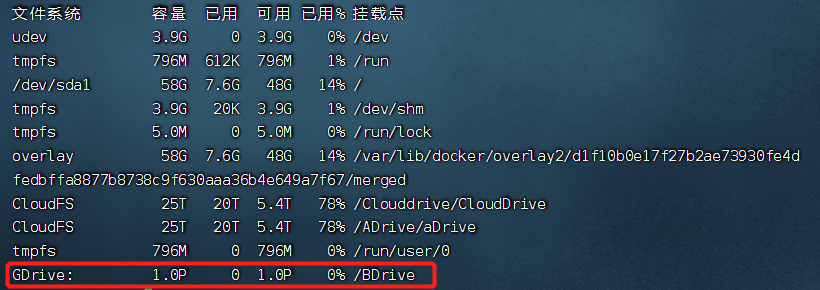
挂载成功,如下图: 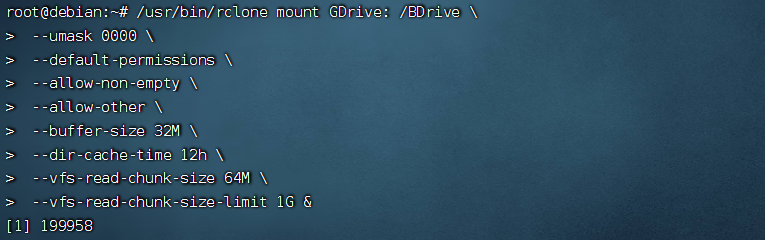 查看挂载情况:
df -h
 3.添加自动挂载: 以下是一段完整代码,不要分开,如下图:
 cat > /etc/systemd/system/rclone.service <<EOF [Unit] Description=Rclone AssertPathIsDirectory=LocalFolder After=network-online.target
`` [Service] Type=simple ExecStart=/usr/bin/rclone mount GDrive: /BDrive --umask 0000 --default-permissions --allow-non-empty --allow-other --buffer-size 32M --dir-cache-time 12h --vfs-read-chunk-size 64M --vfs-read-chunk-size-limit 1G ExecStop=/bin/fusermount -u LocalFolder Restart=on-abort User=root ```[Install] WantedBy=default.target EOF` 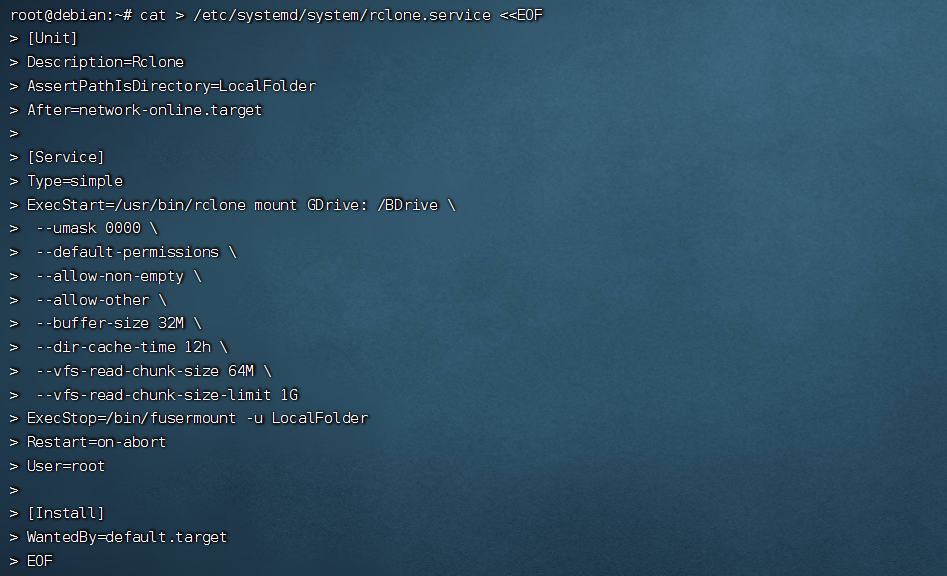 四、启动rclone
sudo systemctl start rclone
五、设置自动启动
sudo systemctl enable rclone
挂载多个网盘
1、按上述安装步骤,挂载多个网盘,如CDrive、GDrive。 2、将下列设置自动挂载代码 cat > /etc/systemd/system/rclone.service <<EOF 第一行中的rclone更改为rclone1、rclone2等。 3、启动rclone1、rclone2等
sudo systemctl start rclone1
sudo systemctl start rclone2
……
4、设置自动启动:
sudo systemctl enable rclone1
sudo systemctl enable rclone2
……
rclone常用命令
启动
systemctl start rclone
开机启动
systemctl enable rclone
重新启动
systemctl restart rclone
停止
systemctl stop rclone
卸载磁盘
fusermount -qzu LocalFolder
状态
systemctl status rclone